
How to Connect Printer to Laptop (USB, Bluetooth & WiFi)
Connecting a label printer to your laptop shouldn’t be a frustrating task, yet many face driver mismatches, pairing failures, or connectivity drops—especially across USB, Bluetooth, and WiFi. For home labeling, office asset tracking, or industrial cable marking, a seamless setup is key to efficiency. MakeID’s label printers solve these pain points with tailored software, universal connectivity, and model-specific optimization, making setup simple for all skill levels.
Let’s break down every step for Windows and Mac laptops to make connecting a printer to your laptop simple and hassle-free.
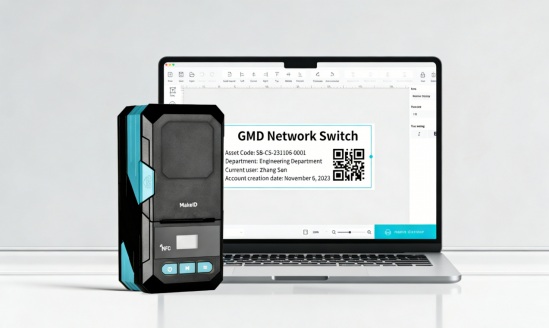
Why Field Printing for Fiber Cable Pre-Connection Checklist: MakeID Printer & Laptop Prep
Before starting, confirm compatibility and gather essentials to avoid setup delays. First, check your MakeID model: Ensure your printer is charged/powered, loaded with MakeID label paper (non-original paper causes jams), and the cover is locked (a flashing red light means an unlocked cover or misaligned labels).
For your laptop, verify Windows 10/11 (32/64-bit) or macOS 12.0+. Next, download MakeID’s official software from https://www.makeid.com/global/support : install the model-matched driver- MakeID Label Design (for Windows/Mac). Enable USB/Bluetooth/WiFi permissions and disable firewall blocks for MakeID software—this prevents connection interruptions.
3 Step-by-Step Connection Methods for MakeID Printers
USB Connection: Stable Wired Setup (All MakeID Models)
USB is the most reliable option for continuous printing, compatible with every MakeID printer.
- Connect the printer to your laptop with a MakeID original USB Line (third-party cables cause recognition issues).
- Run the official driver and follow the install wizard—restart Windows laptops (Macs don’t need a restart).
- Open your laptop’s printer settings: select your MakeID model (it will show “Ready” if recognized).
- Test print with your MakeID software; adjust label alignment if needed.
Ideal for fixed office workstations or industrial production lines, USB avoids signal interference and supports all-day printing.
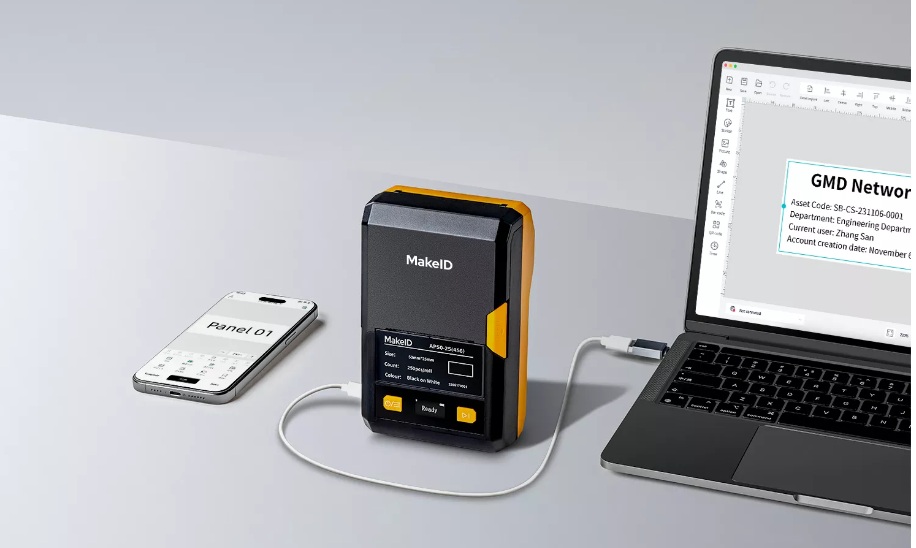
Bluetooth Connection: Wireless Portability (All MakeID Models)
Bluetooth removes you from cables, making it ideal for mobile labeling such as inventory in warehouses or for on-site asset taggers.
- Press on the MakeID Printer’s Power button (3s)–the green light signifies that the printer is active, and Bluetooth is activated automatically.
- Connect your laptop’s Bluetooth and search for the MakeID models (e.g. MakeID-W110) and then pair (no code needed).
- Start MakeID Label Design. Navigate into Device Connection, and select the printer you want to pair (system-only pairing isn’t compatible to print).
- Place the printer within 10 metres from your laptop and away from walls and metal (they hinder Bluetooth signal).
This method works for all MakeID models and is the top choice for home users and mobile workers.
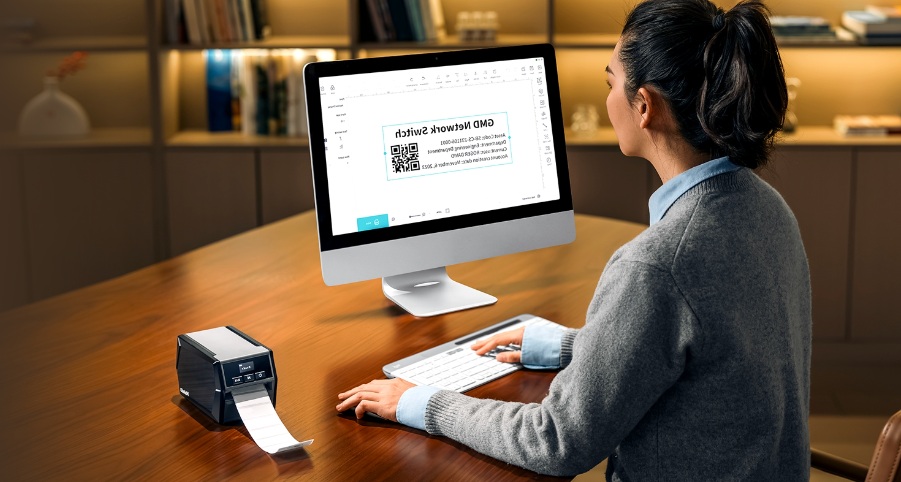
WiFi Connection: Remote & Multi-Device Sharing
Exclusive to MakeID’s selected Label printers (W110/M200D/M200C), WiFi enables team sharing and remote printing.
- Enable the WiFi function of MakeID Label Printer. Start MakeID Label Design, and link the printer WiFi (enter the network password).
- Check that your laptop is connected to the exact WiFi connection. locate the printer’s IP address in the Device Info section of the software.
- Connect the printer to your computer: Windows users select Add an existing printer > TCP/IP; Mac users choose IP Printing from the printer settings. Select an IP and complete the setup.
- Multi-laptops that test remote printing can use the printer so long as they’re all on the same network.
Ideal for office teams or industrial environments with multiple workstations. WiFi improves collaboration and allows for greater flexibility.
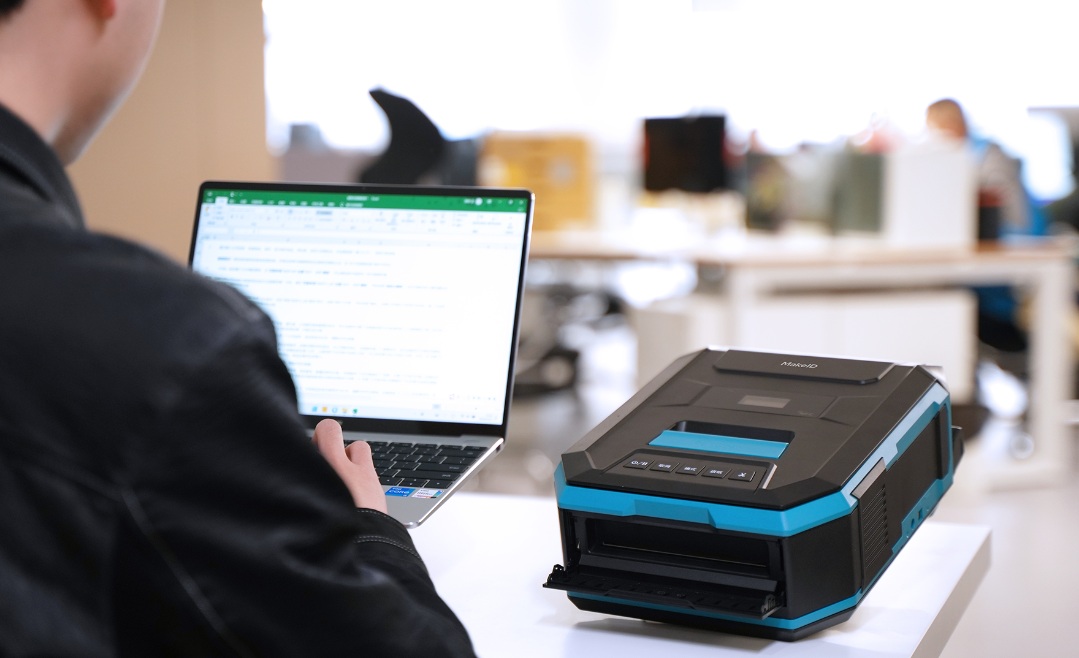
Quick Troubleshooting for Common Connection Issues
Even with a perfect set-up there are small problems that can occur. Here’s how to resolve them quickly:
- An unstable wireless network: keep the printer within 10m of your laptop, recharge it (low battery reduces signal strength) Switch to the private WiFi service (public WiFi causes drops). lifting.
- Printer that is not recognized: Install the most current MakeID driver, or use the original cable alternatively use a switch to USB ports. To test wireless connectivity, verify the model compatibility (some printer models aren’t compatible with WiFi).
- Printing but not connected:Clean the printer queue on your laptop, insert MakeID Label paper. Then, set full permissions for software in your laptop’s settings for system security. Wash the printer head using alcohol (power off first) in case the labels are blurry.
Which Connection Method Is Right for You?
Choose your setup based on your MakeID model and use case:
- USB: All models | Best for fixed stations, industrial continuous printing (stability first).
- Bluetooth: All models | Best for mobile labeling, home use, warehouse inventory (portability first).
- WiFi: Some models only | Best for team collaboration, multi-workstation offices (sharing/remote access first).
For home users, Bluetooth is the perfect balance of ease and portability. Industrial users should use USB for production lines and WiFi for team sharing.
Final Tips for Seamless MakeID Printing
After setting up, you can maximize your efficiency using MakeID’s features Use MakeID Label Design’s templates (cable tags labelling assets) for quick creation and then sync the templates across devices using the help of a MakeID Account (cloud storage is included). You need to clean the print head every month and use authentic MakeID labels because this combination will prevent printer jams and extend the printer’s operational life. The printer should be turned off and its connection to your laptop should be removed during extended breaks to conserve battery power.
In conclusion, connecting the MakeID Label printer with your computer is simple once you have the correct procedure to your particular printer’s model and usage. USB offers reliability, Bluetooth offers portability, and WiFi allows sharing between teams, all backed by MakeID’s user-friendly program and the official drivers. If you follow this guide to avoid the hassle and print professional, clear labels within just a few minutes. For drivers, software, or more support, visit https://www.makeid.com/global/support and unlock your MakeID printer’s full potential today.