
Why Is My Printer Printing Blurry?
In professional scenarios like power wiring, telecom equipment labeling and industrial MRO, label printers are key for clear, accurate labels—they need to show fine text, barcodes/QR codes and stay readable in complex environments. Yet users often face blurry printing (edge fuzz, broken text, un-scannable barcodes). Combining the hardware characteristics, consumable requirements, software functions, and usage scenarios of the MakeID Label Printers, this article analyzes the causes of its blurry printing from four dimensions and provides solutions to restore the MakeID Label Printers’ 300DPI high-def printing.

Consumable Issues
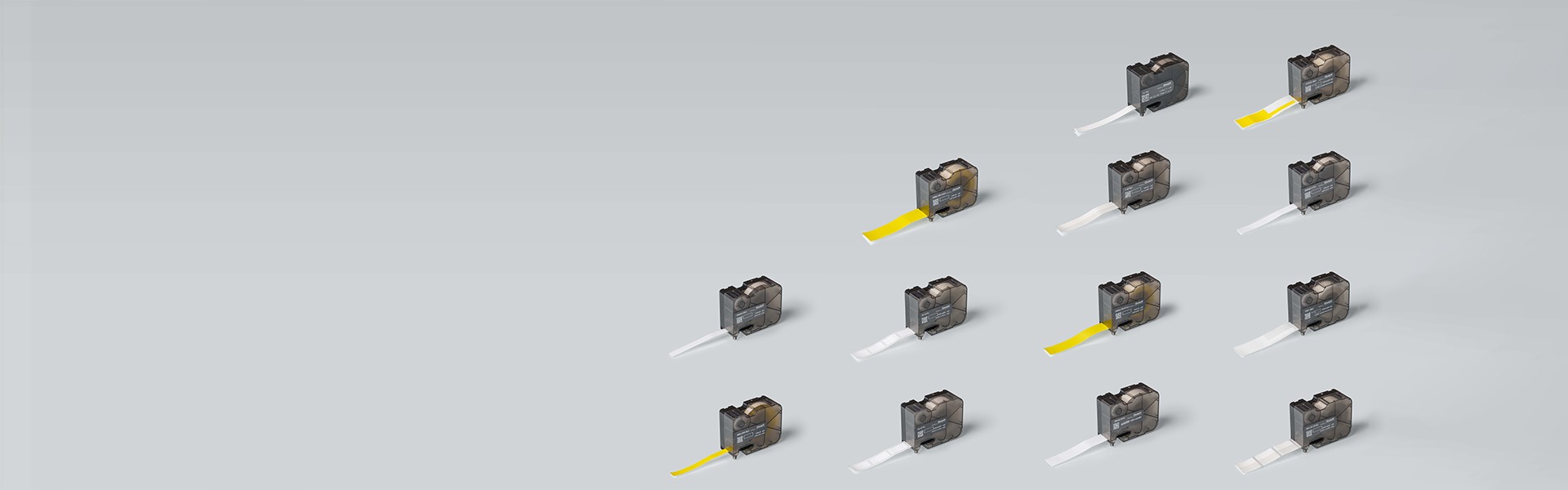
As thermal transfer printers, the MakeID label printers’ print quality depends directly on consumable compatibility, condition, and installation. Its “all-in-one ribbon and label” design allows 5-second quick replacement, but poor consumable selection or installation often causes hidden, blurry printing.
Consumables Compatibility Issues
For instance, the MakeID W110 offers dedicated consumables (nylon, film-protected, heat-shrinkable tube, etc.) for different scenarios (see Table 1). Each consumable’s material and matching ribbon are precisely calibrated; incompatible ones break the “ink layer transfer-material adhesion” balance in thermal transfer, leading to blurriness.
Table 1: Common MakeID W110 Consumables
| Consumable Material | Key Features | Application Scenarios | Ribbon Requirement |
| Nylon | High flexibility, fits curved surfaces | Cable/wire labeling | Resin-based ribbon (high adhesion) |
| Film-protected | Oil/solvent resistant, wear-resistant | Outdoor electrical equipment labeling | Hybrid-based ribbon (balances adhesion and weather resistance) |
| Heat-shrinkable tube | Flame-retardant, insulating | High-end cable labeling | Wax-resin composite ribbon (high-temperature shrinkage resistance) |
| PVC | Moisture/UV resistant | Equipment panel, warehouse labeling | Wax-based ribbon (cost-effective) |
| PET | Chemical-resistant, all-scenario applicable | Indoor/outdoor general labeling | Hybrid-based ribbon (balances clarity and durability) |
Common issues: 1) Non-MakeID certified all-in-one ribbons—third-party consumable ribbons have uneven ink or weak adhesion, causing “ink-deficient” blurriness. 2) Aging/stored improperly—expired consumable form ink clumps (“spotty” blurriness); humid PVC/PET labels deform, reducing ribbon contact.
Troubleshooting :Check the official consumables list to confirm that the model and material of the used consumables match; replace expired consumables (the shelf life of consumables is usually 18 months); ensure the ribbon surface is flat and wrinkle-free, and the label edges are not warped before conducting a test print.
Installation Issues
The all-in-one design simplifies installation, but 5-second replacement may cause oversight. Issues: 1) Incomplete engagement—no two “clicks” mean semi-loose consumables, misaligning labels/ribbons (“offset blurriness”). 2) Loose/misaligned consumable—untaut ribbons or misaligned liner guide cause “striped blurriness”; barcode lines break, becoming un-scannable.
Fixes: 1) Power off, remove old consumable. 2) Unpack new one, flatten/align ribbon, push until dual latches click. 3) Turn “paper knob” to check smooth movement. 4) Power on, print “Consumable Test Template” to confirm neat edges.
You can click here to watch operation video.
Equipment Hardware Issues
As a handheld device, the MakeID Label Printers have durable, stable hardware, but long-term use or improper operation may cause failures affecting print clarity. Troubleshoot by focusing on three core components: printhead and battery.
Printhead Malfunction or Contamination
The printhead is key to the Label Printers’ 300DPI printing—its fine heating dots determine ink transfer precision. In industrial settings, dust, oil, or residual label adhesive easily stick to it; long-term use also causes wear, both leading to blurriness.
Contamination is most common: Cable insulation dust (power scenarios) enters via cartridge compartment gaps; telecom room oil sticks during operation; residual liner adhesive builds into an “adhesive film,” blocking heating dots and causing “partial missing prints” (e.g., missing text strokes/barcode lines). Uncleaned adhesive may carbonize, damaging the printhead permanently.
Wear happens with high-frequency use: Over 100,000 labels printed, heating dots may “age,” making content faded/blurry—worse on light-colored labels.
Troubleshooting:
- Clean: Power off, remove consumable, use official lint-free swabs with 75% isopropyl alcohol to wipe the printhead (one-way horizontal wipe). Wait 5 minutes for alcohol to evaporate, then reinstall.
- Test: Use the APP’s “300DPI High-Definition Test Template.” If blurriness remains or barcodes fail to scan, contact MakeID after-sales for printhead inspection/replacement.
Battery Power Issues
The large battery supports outdoor use, but low power causes unstable supply, reducing printhead heating efficiency and blurring prints.
Thermal transfer needs stable current. Below 20% battery, current fluctuates: Overheated areas cause “smudged blurriness”; underheated areas lead to “ink-deficient blurriness.” Barcodes/QR codes suffer uneven line thickness, failing scans.
Troubleshooting:
- If instability persists, the battery may be aging—contact after-sales for inspection.
- Check battery via MakeID Label Pro APP—charge with official charger if <20%.
- Avoid printing while charging; reprint a test page when fully charged (APP shows 100%) to check clarity.
Software and Setting Issues
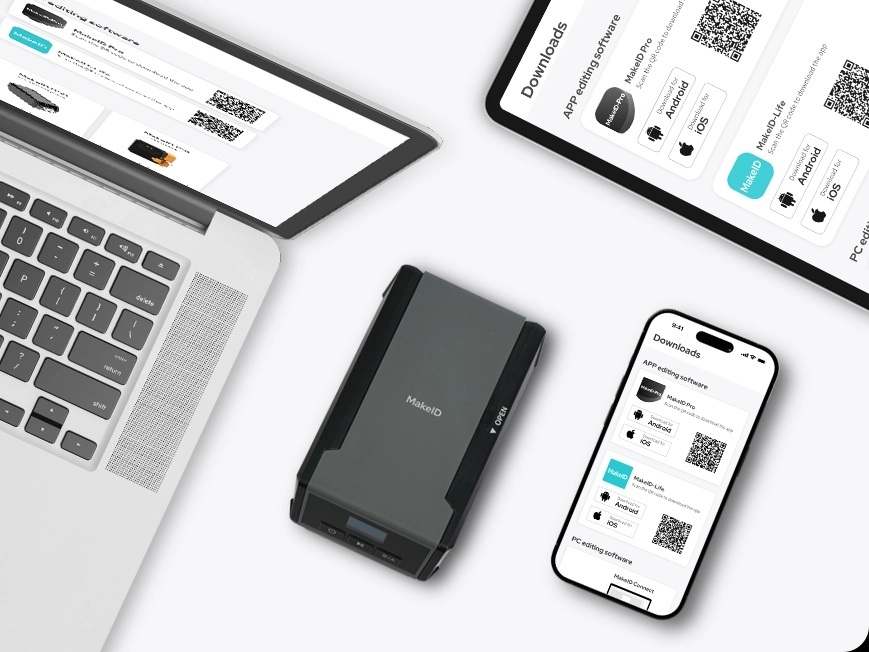
The MakeID Label Printer uses an “APP/PC control + device execution” workflow, where proper software settings directly affect print quality. Even with working hardware and consumables, wrong configurations stop its 300DPI high-def performance, causing blurry printing.
APP/PC Setting Deviations
MakeID Label Printers have rich print settings in the MakeID Label Pro APP (Android) and PC software. Common deviations are in three areas:
Incorrect Resolution: Default is 300DPI, but some lower it to 203DPI/150DPI for speed. This loses details in fine text (≤8pt) and barcodes, leading to “pixelated blurriness” (jagged edges, ink dots in barcode gaps).
Improper Content Parameters: Fonts <6pt cause overlapping strokes (“blended blur”); high-density barcodes (e.g., high-density Code 128 on 20mm labels) have stuck lines, making them unscannable.
Troubleshooting:
- Open APP/PC software, enter “Print Settings”, select “300DPI” .
- Use ≥8pt font, set barcodes to “standard density” (0.15mm narrow bar for Code 128), re-edit and test print.
Connection Instability
The W110 supports Bluetooth, WiFi, USB. Unstable connections cause data loss, leading to blurry content—worse with industrial EMI or signal blockage.
Bluetooth/WiFi: EMI from high-voltage/telecom devices causes packet loss (“broken text blur”, incomplete barcodes); WiFi blocked by metal delays transmission, causing “offset blur”.
USB: Non-original cables or dusty/oxidized ports cause intermittent transmission (“line-skipping blur”, overlapping lines).
Environmental and Usage Scenario Issues
Although MakeID label printers are industrial grade devices, they have some environmental flexibility external elements such as extreme temperatures and humidity, as well as dust in the outdoor can impact the print quality and cause blurring.
Impact of Ambient Temperature and Humidity
The printing process of thermal transfer is sensitive to humidity and temperature. MakeID label printers’ recommended operating environment is 0–40°C with 30%–80% humidity; deviations will degrade consumable performance and destabilize the device.
- High-temperature environments (e.g., outdoor summer, equipment rooms): Ribbon ink layers melt easily, spreading on labels and causing “smudged blurriness”; label materials (e.g., PET) soften, leading to poor contact with the printhead and incomplete ink transfer.
- High-humidity environments (e.g., southern rainy seasons, outdoor rain): Labels absorb moisture—PVC labels develop water droplets (ink can’t adhere, causing “spotty blurriness”); nylon labels stretch and deform, misaligning printed content.
Troubleshooting:
1.Use a thermometer/hygrometer to confirm the environment. Avoid printing outside for extended periods at high temperatures (use an umbrella if necessary) Place desiccants in close proximity to the printer to decrease humidity levels if they are too high.
2.Store empty cartridges inside a cold dry location (15-25degC with 40%-60 percent humidity). Let the cartridges adjust to operating conditions for a period of 30 minutes prior to use to avoid condensation due to temperatures that differ.
Interference in Outdoor and Mobile Printing
MakeID label printers are lightweight and support one-handed mobile printing, but factors like dust and shaking in such scenarios can cause blurriness.
- Outdoor dust pollution: In power inspections or outdoor projects, dust/sand enters the cartridge compartment and paper path, adhering to the printhead (causing “dotty blurriness” from uneven heating) or labels (blocking ink adhesion, creating “blank spots”). Neglecting cleaning accelerates printhead wear.
- Device shaking during mobile use: Printing while walking or holding the device unevenly shifts the printhead-label alignment (“offset blurriness”) or causes label wrinkles (“wrinkled blurriness”). Shaking also bends barcode lines, making them un-scannable.
Solutions:
1.Use the official protective case outdoors (dust/impact-resistant). Wipe the printhead after every 10 labels.
2.Place the printer on a flat surface (e.g., toolbox) for mobile printing. If using one hand, stabilize the device’s base to avoid shaking; keep still until printing and cutting finish before moving.
Summary
Blurry printing on the MakeID label printers usually comes from small oversights in consumable compatibility, hardware maintenance, software settings or scenario use—not poor device performance. By using the article’s troubleshooting layered approach users are able to quickly resolve the issue, revert to 300DPI high-definition printing, and also ensure that labels are clear.
If the issue persists even after troubleshooting or hardware malfunction (e.g. wear on the printhead or battery wear) is suspect, call MakeID’s after-sales support.